
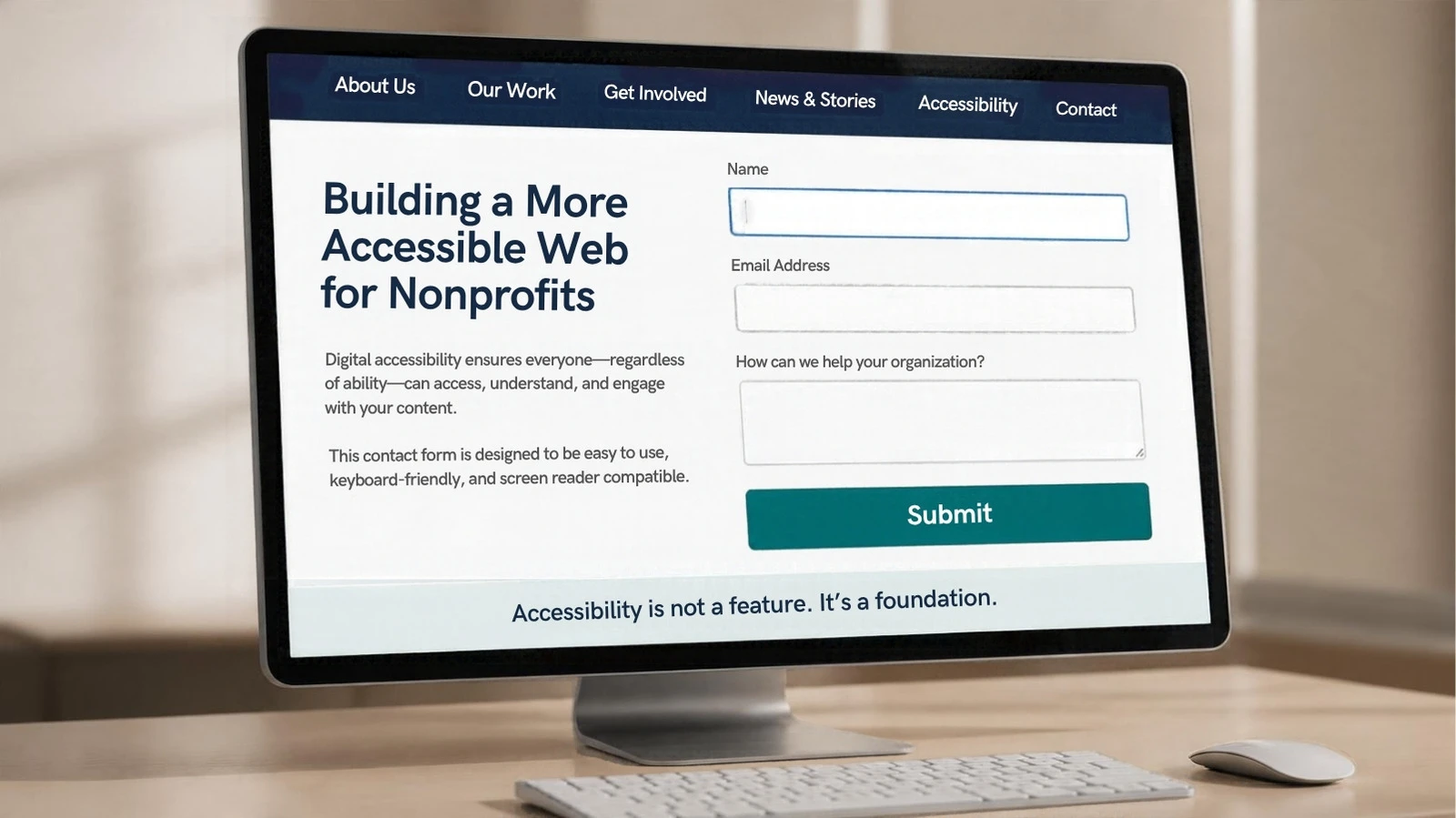
If you only have time to fix three things, fix these: add alt text to meaningful images, make sure your donation and sign-up forms can be completed with a keyboard alone, and check that your text has enough contrast against its background. Those three changes catch the most common barriers and the ones most likely to stop a donor or applicant cold. Everything else in this guide builds on that starting point.
Website accessibility means a site that people with visual, auditory, motor, or cognitive disabilities can actually use, not just view. For a nonprofit, that is not an abstract compliance exercise. It is the difference between a donor who completes a gift and one who gives up on a form they could not see or operate, and between a volunteer who finds your application and one who never does.
What “website accessibility” actually means
The technical standard behind most accessibility work is the Web Content Accessibility Guidelines, published by the W3C. WCAG organizes requirements under four principles, usually shortened to POUR: content must be Perceivable (people can see or hear it, or an alternative is available), Operable (people can navigate and interact with it, including by keyboard alone), Understandable (language and behavior are predictable), and Robust (it works across browsers and assistive technology). Each individual requirement is also rated by conformance level, A, AA, or AAA, with AA representing the level most organizations, courts, and funders treat as the practical target (W3C WCAG quick reference).
You do not need to read the full specification to make meaningful progress. Most of what affects a nonprofit site in practice comes down to a short list: images need text alternatives, color cannot be the only way information is conveyed, text needs enough contrast against its background, every interactive element needs to work from a keyboard, and forms need clear labels and error messages. The checklist below covers each of these in more detail.
Does the ADA apply to your nonprofit’s website?
This is the question we get asked most, and the honest answer has two parts that are often blurred together.
In April 2024, the Department of Justice finalized a rule requiring state and local government websites to meet WCAG 2.1 Level AA, with phased compliance deadlines (ADA.gov, Title II web rule). That rule applies to government entities under Title II. It does not apply directly to private nonprofits.
Most nonprofits fall under Title III, which covers private businesses and organizations open to the public. There is no equivalent DOJ technical rule for Title III websites specifying a required WCAG level. What exists instead is case law: the Ninth Circuit’s Robles v. Domino’s Pizza decision held that a website can violate the ADA if it is inaccessible to people with disabilities, and lawsuits citing WCAG 2.1 AA as the benchmark have continued to rise. Courts have not been consistent on exactly how the ADA applies to a given website, so if your organization has received a demand letter or wants a definitive answer about its own legal exposure, that is a question for an attorney, not a blog post.
What we can say plainly: whether or not a specific law requires it, WCAG 2.1 Level AA is the standard that funders, auditors, and courts most often point to, and it is the standard we build against by default.
What to fix first
Not every accessibility issue carries the same weight, and not every nonprofit has a developer on call. This list is ordered by a mix of how often the problem actually blocks someone and how cheap it typically is to fix, so you can make real progress before committing budget to anything bigger.
1. Alt text on meaningful images
Every image that conveys information, a photo of your program in action, an infographic, a headshot, needs alt text that describes what it shows. Purely decorative images, like a background texture, should have empty alt text so screen readers skip them instead of reading a meaningless filename aloud. This is usually the fastest fix on this list, and most CMS platforms, including WordPress, have a dedicated alt text field on every image.
2. Color contrast
Body text needs a contrast ratio of at least 4.5:1 against its background; larger text (18pt and up, or 14pt bold) needs at least 3:1. Light gray text on a white background, a common design choice, routinely fails this. A free contrast checker will tell you in seconds whether a given color pairing passes.
3. Keyboard navigation
Unplug your mouse and try to use your own site. Can you reach every link, button, and form field using only the Tab key, and can you see where you are at all times? If focus disappears, jumps somewhere unexpected, or gets trapped inside a popup, that is a real barrier for anyone who cannot use a mouse, not an edge case.
4. Form labels and error messages
Every input needs a programmatically connected label, not just placeholder text that disappears when someone starts typing. Error messages need to say specifically what went wrong and how to fix it, not just turn a field red. This matters most on your donation form and any application or sign-up flow, which is its own topic below.
5. Heading structure
Screen reader users often navigate by jumping between headings, the way a sighted visitor skims a page. That only works if your headings are marked up as actual headings (H1, H2, H3) in a logical order, not styled to look like headings while technically being plain bold text.
6. Captions and transcripts
Video needs captions, and standalone audio, like a podcast episode, needs a transcript. This is the item most likely to need budget, since accurate captioning takes real time, but it is also the one with a clear deadline: add it as content is produced rather than trying to retrofit a video library all at once.
Accessible donation and sign-up forms
Your donation page deserves special attention because it is the one place where an accessibility barrier has an immediate, measurable cost: a completed gift that never happens. The same logic applies to volunteer applications and event registrations. A visitor who cannot complete the form does not usually contact you to explain why; they just leave.
Beyond the labels and error messages covered above, check that your donation flow works at 200% browser zoom without content overlapping, that payment step changes (a declined card, a required field) are announced to screen readers rather than only shown visually, and that your confirmation step is reachable and readable the same way the rest of the form is. We cover the full set of checks we run against every donation page we build in the donation page checklist we use on every project, which is worth running alongside this list.
Quick fix, or does your site need more than a patch?
Some accessibility problems are a content or settings change you can make this week. Others point to a deeper structural issue, like a theme that was never built with keyboard navigation in mind, that a patch will not really solve. Here is how to tell the difference.
| Sign | Usually a quick fix | Usually points to a bigger rebuild |
|---|---|---|
| Missing alt text, low contrast, unlabeled form fields | ✓ Fix directly in your CMS | |
| Keyboard focus gets trapped or disappears across the whole site | ✓ Usually a theme or template-level issue | |
| One or two pages have problems; the rest of the site is fine | ✓ Fix those pages | |
| Every interactive component (menus, popups, sliders) has the same keyboard problem | ✓ The underlying components need to change | |
| Videos lack captions | ✓ Add captions going forward, retrofit over time | |
| The donation flow cannot be completed by keyboard at all | ✓ Worth testing whether this is a platform limitation |
If what you are finding looks like the right-hand column more than the left, it is worth reading when a nonprofit website needs a rebuild, and when it doesn’t before committing budget either way.
Accessibility and your Google Ad Grant
If your organization uses or plans to apply for a Google Ad Grant, there is a practical reason to take website quality seriously beyond the points above. Accessibility is not listed by name as a specific Ad Grant eligibility requirement, but Google’s site-quality bar for Ad Grant participants, a fast, functional, well-maintained site with clear navigation and substantial content, overlaps heavily with accessibility best practice (Google for Nonprofits website policy). A site that is hard for a screen reader to parse is often also the kind of thin, cluttered, slow-loading site that runs into trouble with the broader policy. Treat the two as connected, not identical.
How to actually test your site
You do not need an expensive audit to catch most of what matters. A reasonable first pass:
- Automated scan: Run your homepage and a few key pages through a free tool like WebAIM’s WAVE or the axe browser extension. These catch missing alt text, contrast failures, and some structural issues in seconds, though they only catch a fraction of real problems.
- Keyboard-only pass: Navigate your main pages and your donation form using only Tab, Shift+Tab, and Enter. No mouse.
- Screen reader spot check: Turn on VoiceOver (Mac) or NVDA (Windows, free) and listen to your homepage and donation page. You do not need to be an expert user to notice when something is clearly broken.
Automated tools are a starting point, not a finish line. They typically catch around a third of real accessibility issues; the keyboard and screen reader passes above catch problems a scanner cannot.
Writing an accessibility statement
A short, honest accessibility statement does two things: it tells visitors who use assistive technology what to expect, and it gives people a clear way to report a problem instead of just leaving. It does not need to be long. State which standard you are working toward (WCAG 2.1 AA is the common choice), what you have checked so far, and a contact method for reporting barriers. Avoid overstating full compliance if you have not completed a full audit; a statement that says what you are actively working on is more credible, and more accurate, than one that claims a finished state you have not verified.
Frequently asked questions
Does adding an accessibility overlay widget make our site compliant?
No. Overlay widgets, the scripts that add a floating accessibility icon, can help with some surface-level adjustments like font size, but they cannot fix underlying code problems like a form that is not properly labeled or a keyboard trap in your navigation. Treat them as a minor supplement at most, not a substitute for the fixes above.
Do we need a full professional audit?
Not necessarily as a first step. Working through the checklist above and running the free tests described in this guide will catch most common issues. A professional audit makes the most sense once you have fixed the obvious problems and want a more thorough review, particularly before a major fundraising campaign or if your organization has received a complaint.
How often should we retest?
Any time you publish a new page, change a template, or redesign a form. Accessibility is not a one-time project; a site that passed a check a year ago can easily have regressed since, especially if content is added by multiple staff members without a consistent process.
Where to start
Start with the three fixes at the top of this guide, then work through the rest of the checklist on your own schedule. If a keyboard or screen reader test turns up problems that look structural rather than content-level, that is usually the point where it is worth having someone look at the underlying build rather than patching around it. Our UX design work checks every flow against WCAG basics as a standard part of the process, not an add-on, because an inaccessible donation or sign-up flow quietly costs you supporters who never tell you why they left. If you want a second opinion on what you are seeing on your own site, tell us what you’re working with and we’ll give you a straight answer about what actually needs fixing first.